Purchase Order Wizard
Staff guide for generating purchase orders from order requests.
Demo Video
Start Screen
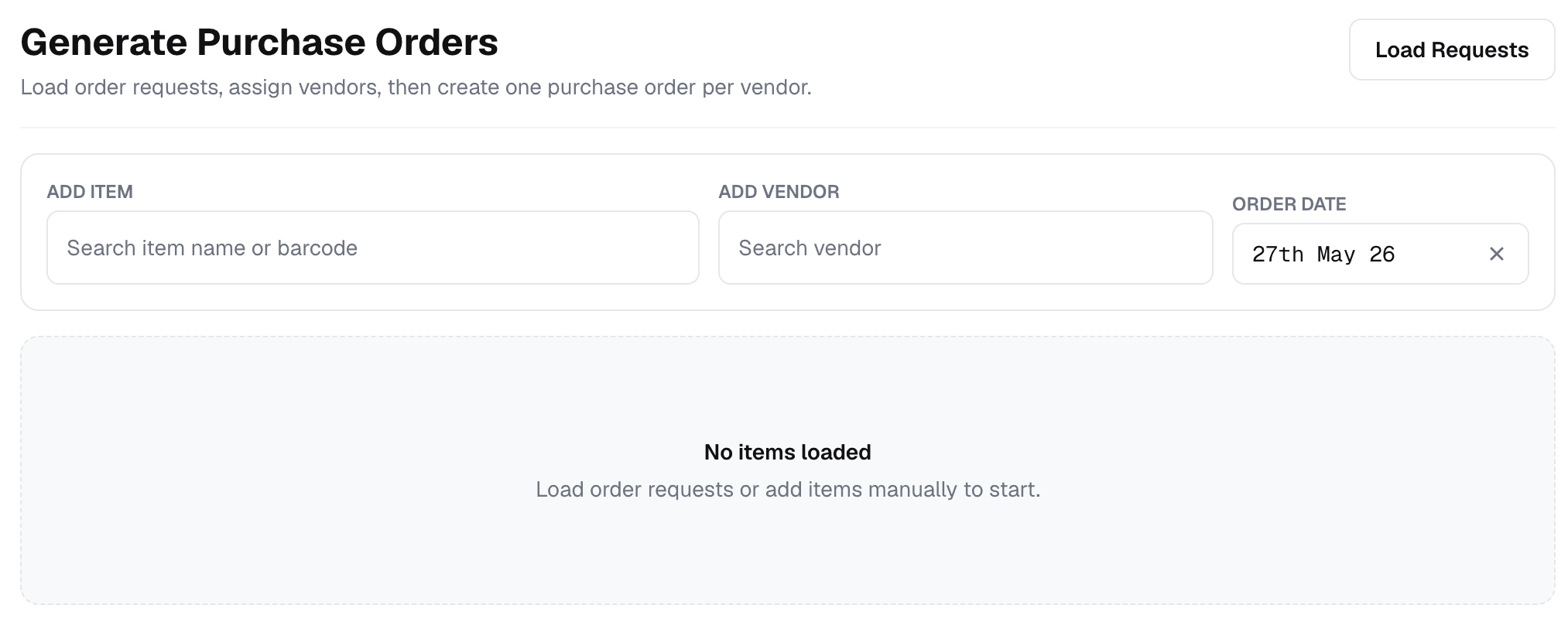
The Purchase Order Wizard starts with an empty workspace. Use this screen to load requested items, add extra items if needed, choose vendors, and set the order date before creating Purchase Orders.
The usual starting point is Load Requests. This brings in items and quantities
from Order Request sheets. Add Item and Add Vendor are optional helpers for
manual adjustments after the request items are loaded.
| Area | Use it to |
|---|---|
Load Requests | Search and load one or more Order Requests into the wizard. |
Add Item | Add an item that was not included in the loaded Order Requests. |
Add Vendor | Add a vendor manually when the item has no useful vendor suggestion. |
Order Date | Set the order date that will be used on the generated Purchase Orders. |
When the screen says No items loaded, no Purchase Orders are ready yet. Load
Order Requests or add items manually before assigning vendors.
Recommended First Action
- Click
Load Requests. - Search for the Order Request sheets you want to order from.
- Review each selected sheet and confirm the sheets that should be included.
- Return to this screen and assign vendors to the loaded items.
Load Requests
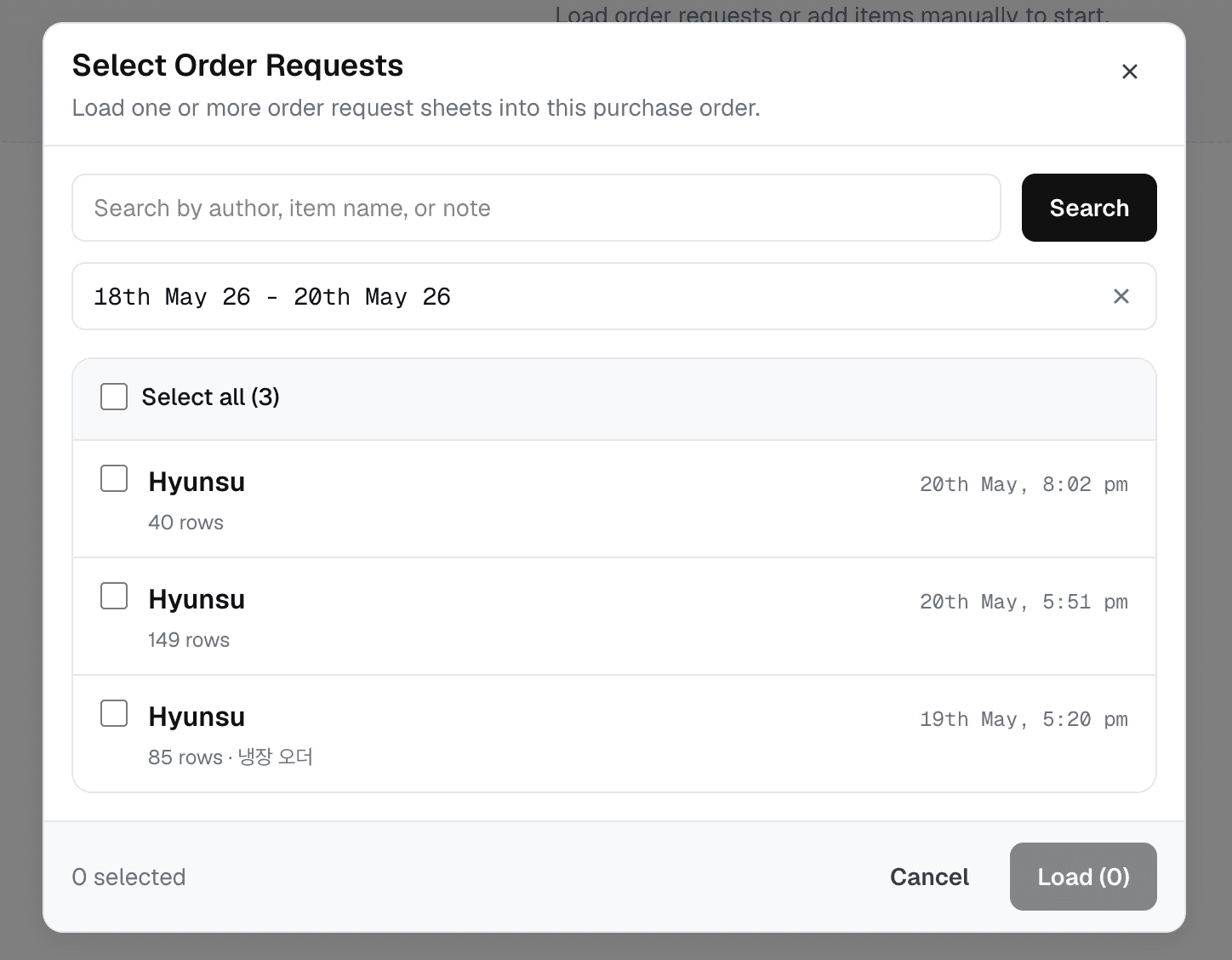
Use Load Requests to bring requested items into the wizard automatically.
Search by author, item name, or note, then choose the Order Request sheets that
should be included in this purchase run.
After the selected Order Requests are loaded, KTPv5 adds the requested items and quantities to the wizard. It also loads any active Vendor Code records for those items, so the wizard can show existing vendor suggestions item by item.
| Area | What to check |
|---|---|
| Search box | Use an author, item name, or note keyword. |
| Date range | Limit the list to the request period you are ordering from. |
| Row count | Check how many item rows are inside each request. |
| Checkbox | Select one or more Order Requests to load together. |
Load | Continue with the selected sheets. |
After clicking Load, the wizard opens a sheet review step. Check each selected
Order Request, then choose Confirm & Load for sheets that should be included
or Skip for sheets that should not be included in this purchase run.
Loading a request does not archive, delete, or mark the Order Request as done. It only copies the request information into the Purchase Order Wizard.
You can adjust the loaded request
After loading Order Requests, you can still use the header controls to add an item that was not requested, add a vendor that was not suggested, or remove a requested item that should not be ordered this time.
Unsaved wizard work can be restored
If you leave the page by mistake or move to another page, the wizard saves the current work in this browser for up to 2 hours. When you return to the Purchase Order Wizard, KTPv5 asks whether you want to restore the saved draft.
Two Ways To Assign Vendors
After items are loaded, the wizard gives two working views.
Itemsview is best when you want to check each item and choose its vendor one by one in a side-by-side assigned/unassigned workspace.Vendorsview is best when you want to work vendor by vendor and assign many matching items at once.
The assigned and unassigned counts at the top update as you work. Only assigned items are included when Purchase Orders are created.
Items View
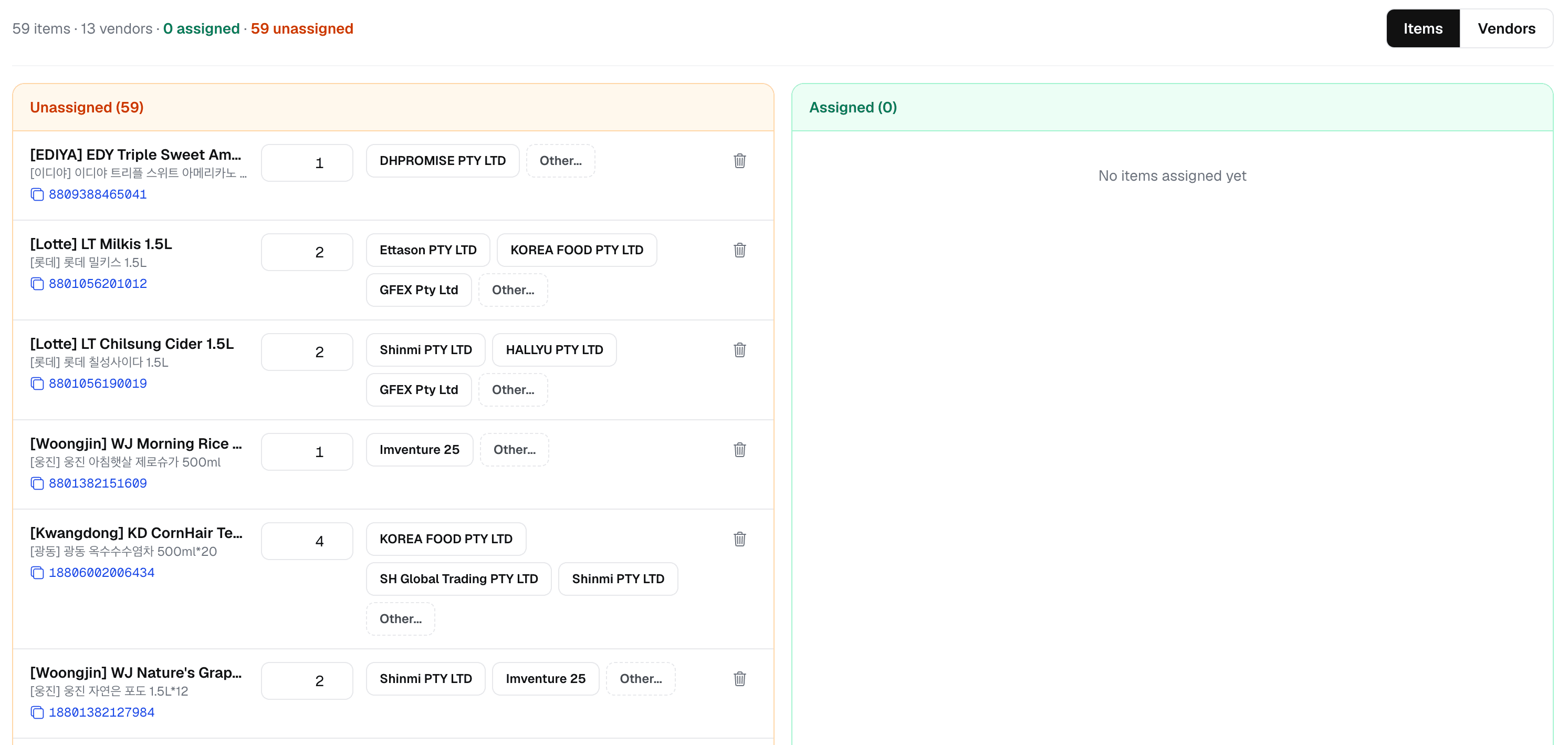
Use Items view to make item-level decisions. The left side shows unassigned
items and the right side shows assigned items. Each row shows the item, barcode,
quantity, vendor suggestions, and delete action.
- Change the quantity directly in the row when the requested quantity should be adjusted before ordering.
- Choose one of the vendor buttons to assign the item to that vendor. These buttons come from existing Vendor Code records for the item.
- Use
Other...when the correct vendor is not shown in the suggestions. - After an item is assigned, use
Switchwhen it should move to a different vendor. - Use the trash icon to remove the item from the wizard. This works for both assigned and unassigned items.
Removing an item from the wizard does not delete the item master record or the original Order Request row. It only excludes that item from this Purchase Order generation.
Vendors View
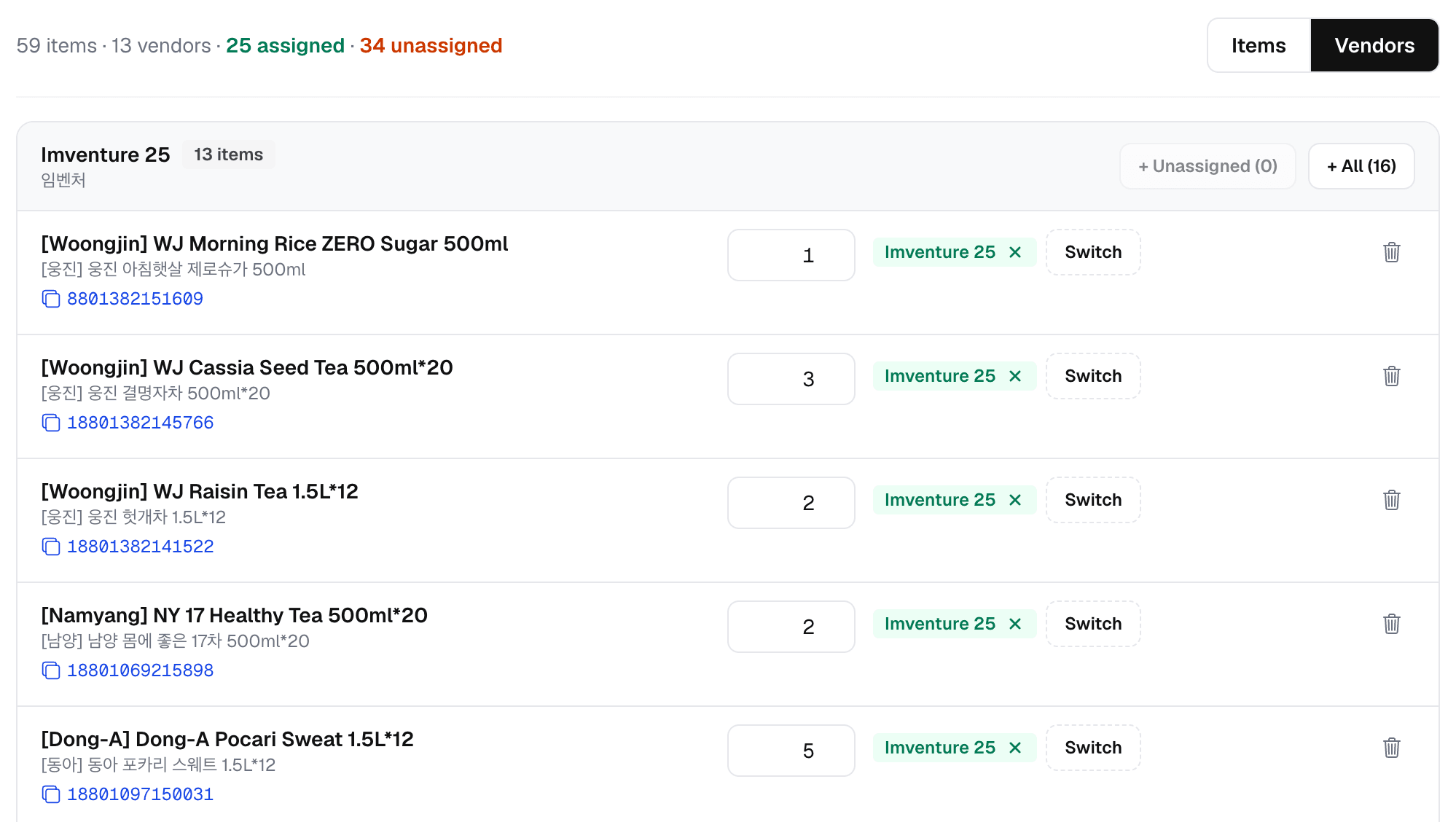
Use Vendors view to work from the supplier side. Each vendor section lists the
items currently assigned to that vendor and provides bulk assignment buttons.
- Change quantities directly in the vendor list when needed.
- Use
+ Unassignedto assign only currently unassigned items that have this vendor as a Vendor Code suggestion. - Use
+ Allto assign every loaded item that has this vendor as a Vendor Code suggestion, even if some of those items are already assigned to another vendor. - Use
Switchon an individual row when only one item should move to another vendor. - Use the trash icon to remove an item from the wizard.
Use + All carefully
+ All can take items away from another vendor if those items also have a
Vendor Code for the current vendor. Use it when this vendor should receive all
matching items in the current purchase run.
Submit Modal
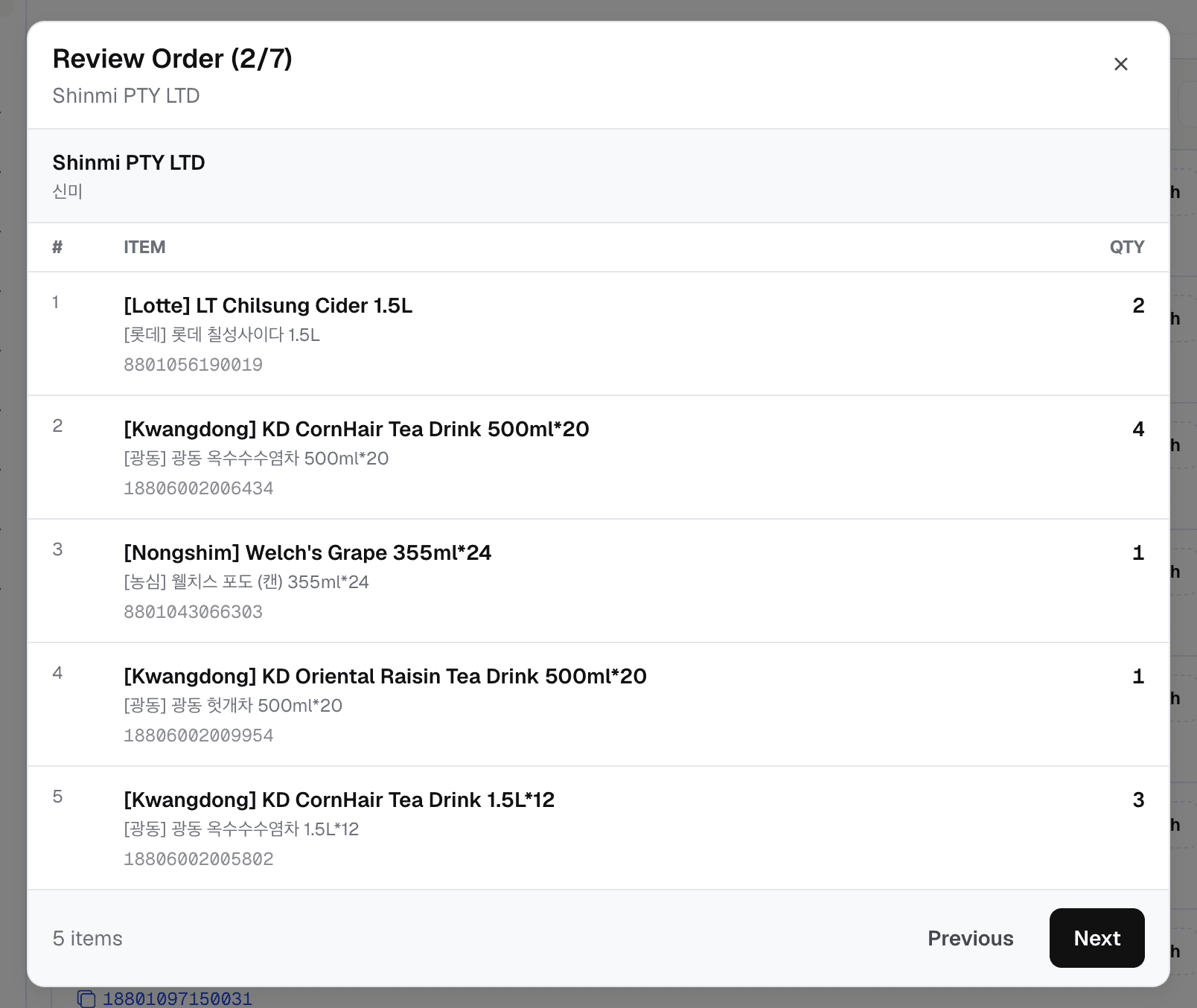
Click Submit after the items have been assigned to vendors. The wizard opens a
review modal so staff can check the Purchase Orders before creating them.
If any items are still unassigned, KTPv5 asks for confirmation before opening the review. At this stage, unassigned items are not included. The modal reviews only the items that will become Purchase Order rows.
- Review each vendor one at a time.
- Check that the correct items and quantities are listed under that vendor.
- Use
NextandPreviousto move through the vendor orders. - Click the
Xbutton if something needs to be changed. This returns to the wizard so editing can continue. - Click
Finish Reviewonly when the vendor groups are correct.
Closing the review modal does not erase the wizard work. It simply returns to the assignment screen.
Create Purchase Orders
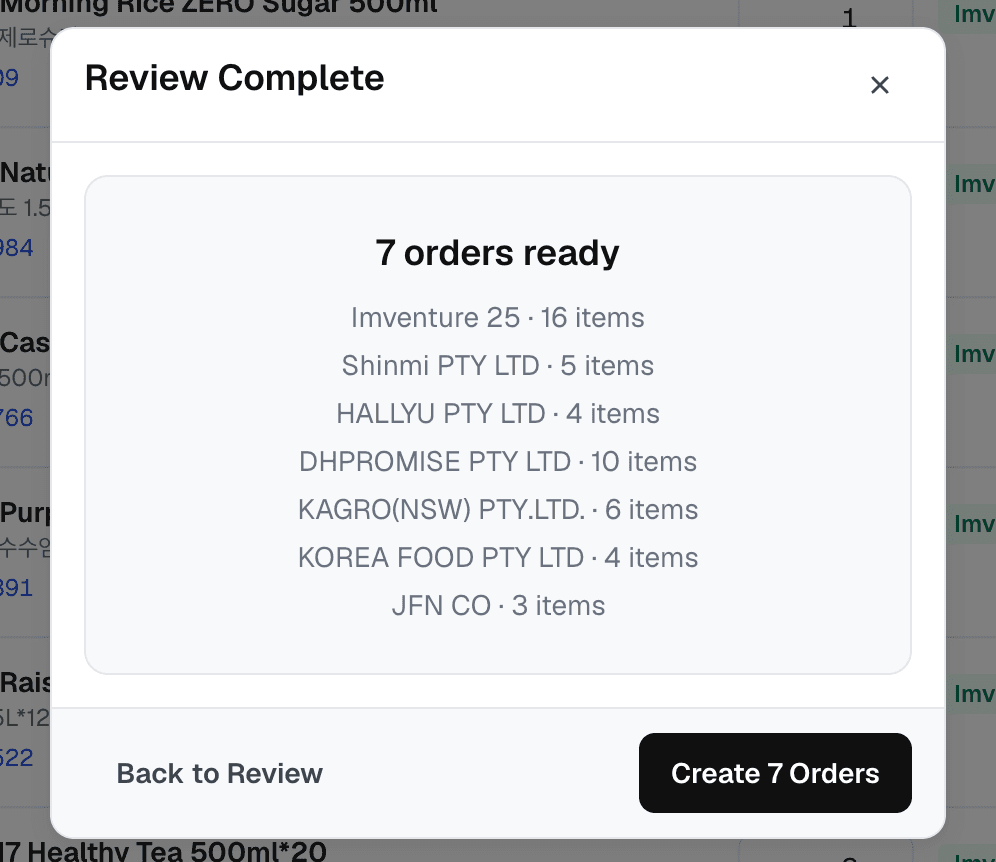
After all vendor groups have been reviewed, the wizard shows a final Review Complete summary. This screen lists how many Purchase Orders are ready and how
many items each vendor will receive.
Click Create N Orders to create the Purchase Orders. KTPv5 creates one draft
Purchase Order per vendor group.
For example, if the review summary says 7 orders ready, clicking
Create 7 Orders creates seven draft Purchase Orders.
Use Back to Review if you need to check the vendor groups again before
creating the orders.
Created orders are drafts
The wizard creates Purchase Orders in DRAFT status. Staff can open and edit
each draft before publishing. Publishing is a separate final action on the
Purchase Order detail page.
Required Roles
| Action | Required role |
|---|---|
| Open the Purchase Order Wizard | purchase_order.manage |
| Load Order Requests into the wizard | purchase_order.manage |
| Read vendor-code suggestions while assigning vendors | purchase_order.manage or pricing.read or pricing.manage |
| Search vendors while assigning items | purchase_order.manage or pricing.manage or contact.read or contact.manage |
| Create draft Purchase Orders from the wizard | purchase_order.manage |
Common Problems
| Problem | What it means |
|---|---|
| No Order Requests appear | Check the date range and keyword in Load Requests. |
| A selected request is skipped | Skip excludes that sheet from this wizard run only. |
| Vendor suggestion is missing | No active Vendor Code is saved for that item/vendor combination yet. Use Other... or Add Vendor. |
| Submit warns about unassigned items | Unassigned items will not become Purchase Order rows unless staff assign them to a vendor first. |
| Unsaved work restore appears | The browser found a wizard draft saved within the last 2 hours. |